Share Your GlucoGlance Data — Simply and Securely
GlucoGlance Remote allows you to share your GlucoGlance data with another person or device using a simple six-digit sharing code.
You control when Remote Sharing is enabled, who receives a sharing code, and when access is revoked. Sharing codes can be resent, revoked, or permanently removed directly from GlucoGlance.
This can be useful when you want your glucose information available remotely without requiring the receiving device to connect directly to your CGM application.
Enabling GlucoGlance Remote
Open Settings → GlucoGlance Remote.
At the top of the screen you will find Enable Remote Sharing.
Turn this switch ON to allow GlucoGlance to upload the information required for your Remote Feed.
When Remote Sharing is disabled, GlucoGlance will not upload new Remote Feed data.
[SCREENSHOT — GlucoGlance Remote main screen]
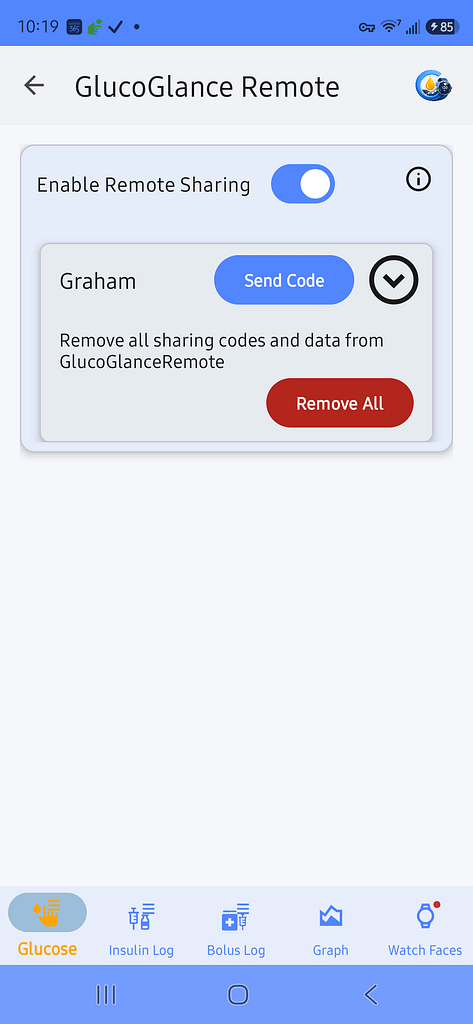
Your Remote Sharing Card
Your name appears on the Remote Sharing card. Tap the down arrow to expand the card and view the sharing codes you have created.
Each sharing code represents access that you have given to another person or device.
From this card you can:
- Send a new sharing code.
- Resend an existing code.
- Revoke an active code.
- Remove the saved record of a revoked code.
- Remove all sharing codes and Remote Feed data.
Sending a Sharing Code
Tap Send Code to create a new Remote Feed sharing code.
Before creating the code, GlucoGlance asks:
Who gets this code?
Enter something that will help you remember who received the code.
This is a free-form field. You can enter a:
- Name
- Phone number
- Email address
- Device name
- Other description
For example, you might enter Noel, Steven, Mom’s Watch, or an email address.
This information is used to identify the sharing code in GlucoGlance later.
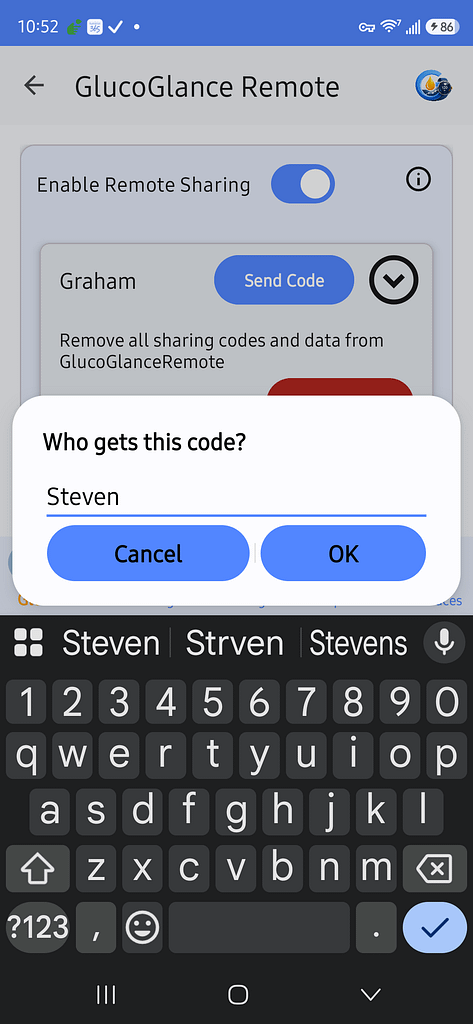
Tap OK.
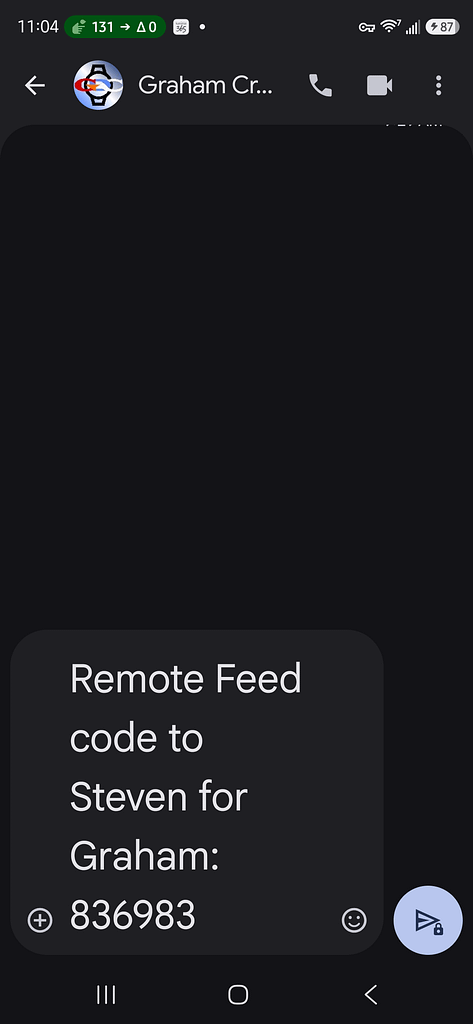
GlucoGlance creates a unique six-digit sharing code and opens your phone’s messaging application with the sharing information already prepared.
The message identifies:
- Who the code was created for.
- Whose GlucoGlance Remote Feed is being shared.
- The six-digit sharing code.
Review the message, select the recipient, and send it normally.
Viewing Your Sharing Codes
Expand your Remote Sharing card to see the codes you have created.
Each entry shows:
Recipient — who you recorded as receiving the code.
Sharing Code — the six-digit Remote Feed code.
Date — the most recent date the code was sent.
The available buttons also tell you whether the code is currently active or has been revoked.
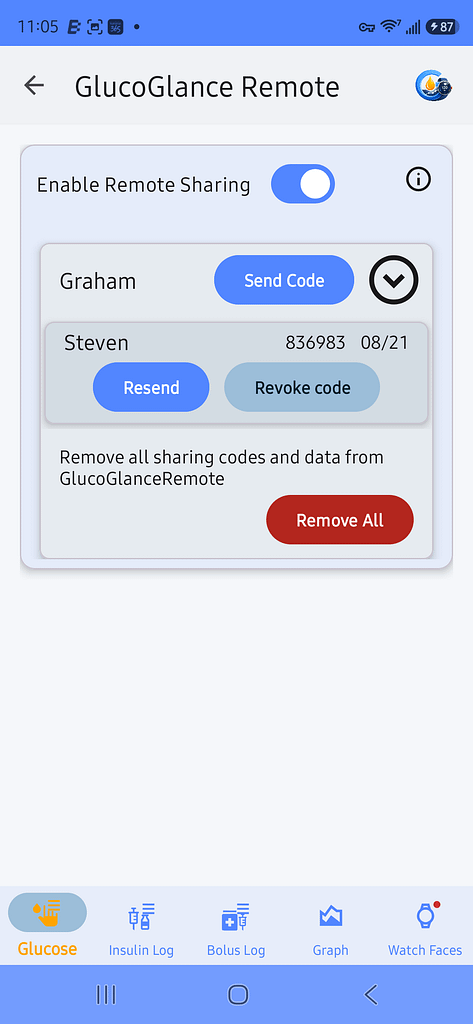
Resending a Sharing Code
Tap Resend when you want to send an existing sharing code again.
You do not need to enter the recipient information again.
GlucoGlance uses the existing:
- Recipient
- Six-digit code
- Remote Feed association
Your messaging application opens with a new prepared message containing the existing code.
The date displayed for that entry is updated to the most recent date the code was sent.
Resending a Revoked Code
Resend is also available for a revoked code.
When a revoked code is resent, GlucoGlance restores that code’s Remote Feed access and changes it back to an active sharing code.
The Revoke Code button will become available again.
Revoking a Sharing Code
When you no longer want a particular code to provide access to your Remote Feed, tap Revoke Code.
GlucoGlance asks you to confirm the action.
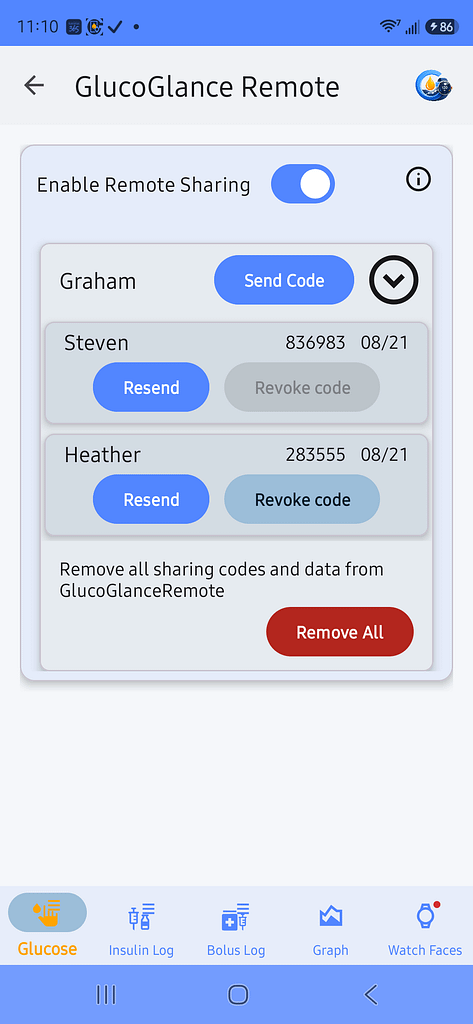
After confirmation, GlucoGlance removes the sharing-code association from the Remote Feed server.
A progress indicator may appear while the server request is completed.
Once the code has been revoked, that six-digit code can no longer be used to access your Remote Feed.
The entry is not deleted
Revoking access deliberately leaves the entry in your GlucoGlance Remote list.
This allows you to see:
- Who previously received the code.
- Which code they received.
- When it was last sent.
The Revoke Code button is disabled for a revoked entry, while Resend remains available.
[SCREENSHOT — Revoked code]
Permanently Removing a Revoked Entry
After a code has been revoked, you may decide that you no longer need its entry in your saved Remote Feed history.
Long-press the revoked entry.
GlucoGlance will ask you to confirm that you want to permanently remove it.
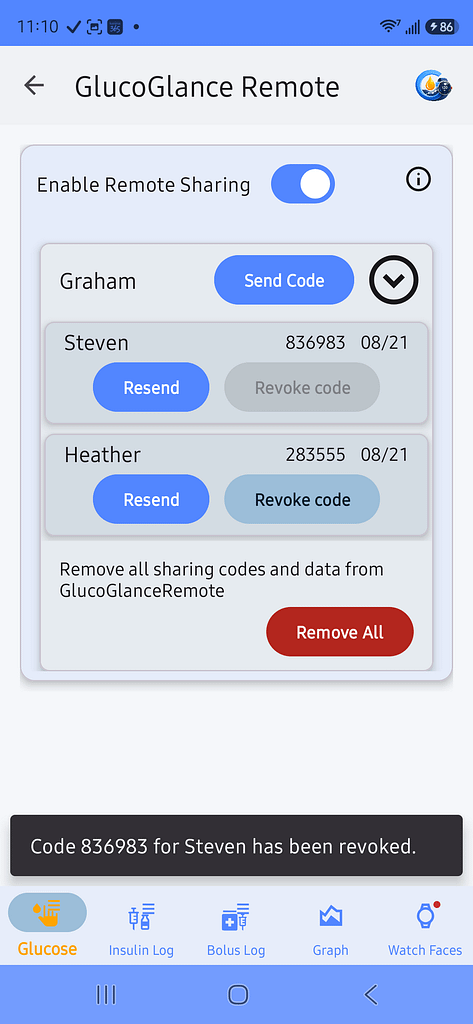
Tap Delete to remove the saved entry.
This removes the revoked recipient and code from your local Remote Feed list.
Active codes are protected
An active sharing-code entry cannot be deleted using long-press.
You must Revoke Code first.
This prevents you from accidentally deleting your local record while leaving an active sharing code in use.
Remove All
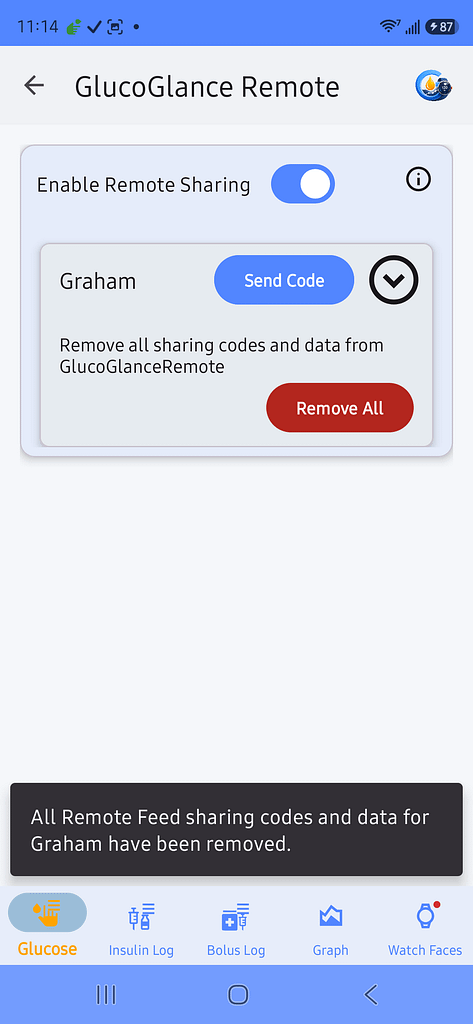
Remove All is the master removal option for GlucoGlance Remote.
Use this when you want to completely remove your current Remote Sharing configuration rather than managing individual codes.
Tap the red Remove All button.
GlucoGlance will ask you to confirm before proceeding.
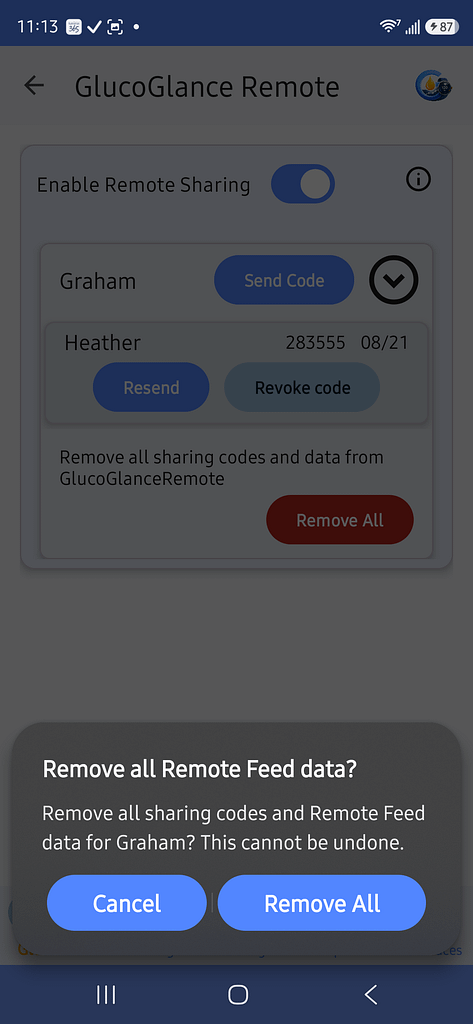
After confirmation, GlucoGlance removes your sharing codes and associated Remote Feed data from the server.
Because several server files may need to be removed, this operation can take a few seconds. A progress indicator is displayed while GlucoGlance completes the removal.
When complete, the saved sharing-code entries are also removed from the Remote Sharing card.
Use Remove All when you want to start over
You do not need to use Remove All simply because you want to stop one person from accessing your Remote Feed.
For one individual code, use Revoke Code.
Use Remove All when you want to remove all Remote Feed sharing codes and Remote Feed data.
Enable Remote Sharing vs. Revoke Code
These controls perform different jobs.
Disable Remote Sharing
Turning Enable Remote Sharing OFF stops GlucoGlance from uploading new Remote Feed data.
It does not serve the same purpose as revoking an individual sharing code.
Revoke Code
Use Revoke Code when you specifically want a previously issued six-digit code to stop providing access.
Remove All
Use Remove All when you want to remove all sharing codes and Remote Feed data from the server.
Remote Sharing Information
Tap the ⓘ information icon at the top of the GlucoGlance Remote screen at any time for a quick reminder of the available controls.
Enable Remote Sharing
Allows GlucoGlance to upload your Remote Feed data.
Send Code
Creates a six-digit sharing code for someone you want to give access to your Remote Feed.
Resend
Sends an existing code again and updates its displayed sent date. Resending a revoked code restores that code’s access.
Revoke Code
Immediately prevents that sharing code from accessing your Remote Feed. The entry remains in your list so you can see who previously had access.
Long-press a revoked entry
Permanently removes that revoked recipient and code from your saved list.
Remove All
Revokes all sharing codes and removes your Remote Feed data stored on the server.
Understanding the Sharing-Code Lifecycle
The normal lifecycle of a GlucoGlance Remote sharing code is:
Send Code → Active → Resend as needed → Revoke → Delete when no longer needed
If you later change your mind after revoking a code:
Revoked → Resend → Active again
And if you want to completely clear Remote Sharing:
Remove All → All sharing codes and Remote Feed server data removed
This gives you control over each individual sharing relationship while still providing a single Remove All option when you want to start over.