Example Glucose Display Settings Screen
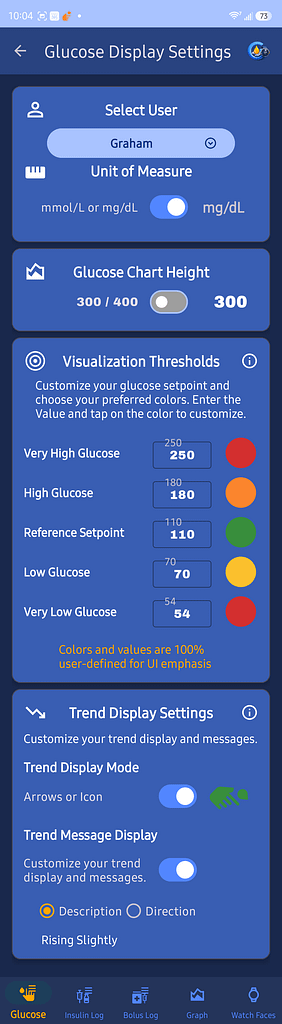
Use Glucose Display Settings to control how glucose information appears throughout GlucoGlance.
Select User
Choose the user whose glucose display settings you want to change.
Each user can have separate glucose display preferences.
Unit of Measure
Choose the glucose unit displayed by GlucoGlance:
- mg/dL
- mmol/L
Changing this setting changes how glucose values are displayed throughout the app.
Glucose Chart Height
Choose the maximum glucose value shown on glucose charts:
- 300
- 400
Use 400 when you want more space displayed above high glucose readings.
Visualization Thresholds
Set the glucose values and colors used for:
- Very High Glucose
- High Glucose
- Reference Setpoint
- Low Glucose
- Very Low Glucose
Enter the desired glucose value for each level.
Tap the colored circle beside a level to choose its display color.
These values and colors are used for visual emphasis within GlucoGlance. They do not change the alerts or settings in your CGM, insulin pump, or manufacturer app.
Reference Setpoint
The Reference Setpoint is the glucose target GlucoGlance uses when displaying and calculating certain glucose and insulin information.
It does not change the target glucose used by your insulin pump or CGM.
Trend Display Settings
Use Trend Display Settings to control how glucose direction is shown.
Trend Display Mode
Choose between:
- Standard trend arrows
- GlucoGlance trend icons
Trend Message Display
Turn this setting on to display a written description of the glucose trend.
Examples may include:
- Rising Slightly
- Rising Quickly
- Falling Slightly
- Falling Quickly
- Steady
Trend Message Type
Choose how the written trend message is displayed:
- Description
- Direction
Description explains how the glucose value is changing.
Direction describes the movement of the glucose value.