Android notifications are controlled at two different levels: the system level and the app level.
System Level Notifications
System-level notification settings are controlled by Android and determine whether the phone allows GlucoGlance to display notifications at all; these settings are managed by the user through Android Settings → Apps → GlucoGlance → Notifications, and the app cannot override them.
Step 1 — Open GlucoGlance App Information
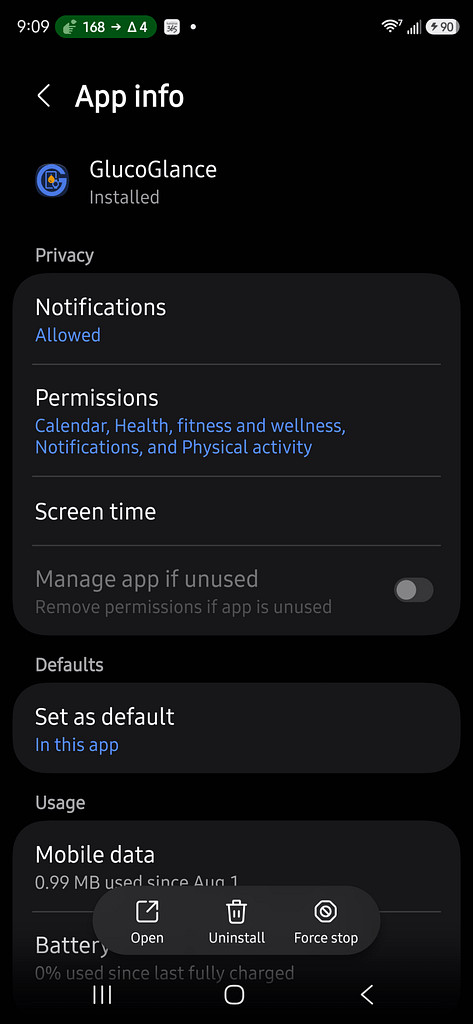
Open Android Settings → Apps → GlucoGlance.
Select Notifications. The status should show Allowed. Do not turn notifications off here. Doing so prevents Android from displaying any GlucoGlance notifications, including the persistent glucose and insulin status notifications.
Step 2 — Open Notification Categories
On the GlucoGlance notification screen, make sure Allow notifications remain ON.
Select Notification categories at the bottom of the screen.
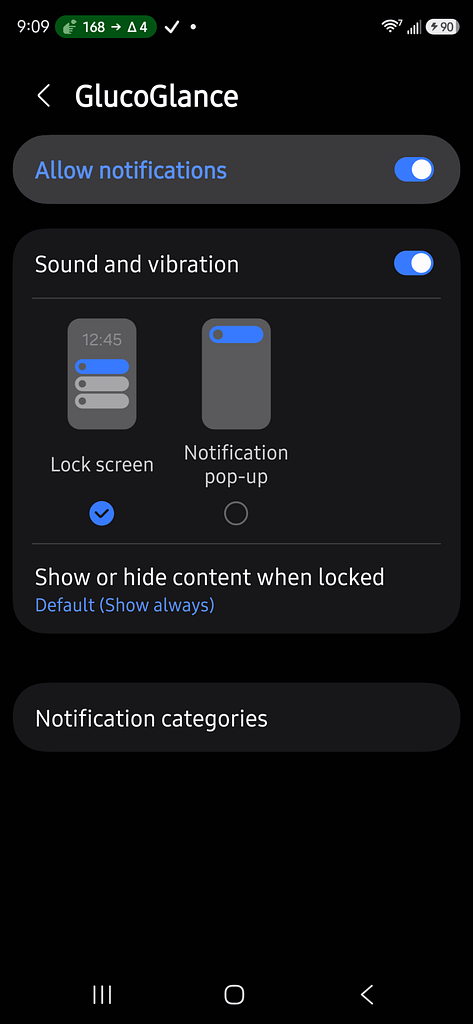
Android divides GlucoGlance notifications into separate categories, or notification channels. This allows you to control the sound, vibration, and visibility of one type of GlucoGlance notification without affecting the others.
Step 3 — Choose the Category Whose Sound You Want to Disable
The categories shown depend on the GlucoGlance features being used:
Excess Carbs — Notifications generated when GlucoGlance determines there may be more carbohydrates affecting glucose than the currently calculated insulin can cover.
Excess Insulin — Notifications generated when GlucoGlance determines that the amount of active insulin may be greater than what is required for the current glucose situation.
Follow User Glucose — Notifications associated with a person being followed by GlucoGlance, including Follow glucose status and loss-of-data notifications.
Combo Glucose & IOB — The persistent combined status notification that displays both the current glucose information and Insulin on Board (IOB).
Glucose Status — The persistent notification used to keep the current glucose status visible in the Android notification/status area.
IOB — The persistent Insulin on Board status notification.
App Messages — General messages generated by GlucoGlance that are not part of the glucose, insulin, or predictive notification categories.
Persistent Notifications — System channel used by GlucoGlance for notifications that need to remain available as ongoing status information.
Predictive Cycle Shift — Notifications generated by GlucoGlance’s predictive system when it identifies a significant change in the current glucose/insulin cycle.
Predictive Excess Carbs — Predictive notification indicating that the glucose response may be consistent with carbohydrates exceeding the insulin currently available to cover them.
Predictive Excess Insulin — Predictive notification indicating that the amount of active insulin may result in glucose falling farther than intended

.
Step 4 — Change the Notification Sound
Tap the notification category you want to change. For example, select Glucose Status.
Leave Allow notifications ON.
Leave the notification category set to Alert. Do not select Android’s Silent notification mode.
Tap Sound.
On the Android sound-selection screen, choose Silent as the notification sound.
This keeps the GlucoGlance notification active as an Alert notification while preventing Android from playing an audible notification sound.
If desired, Android also provides a separate Vibrate control for that notification category.
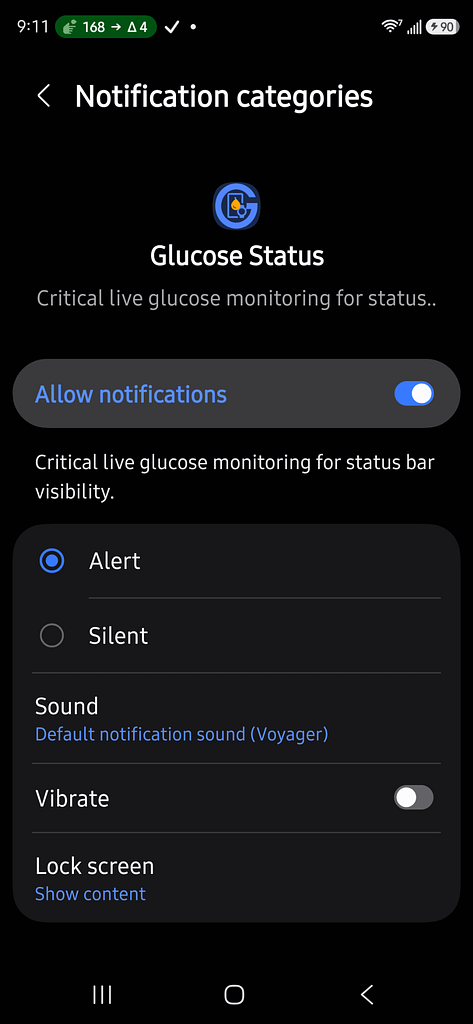
Step 5 — Set the Notification Sound to Silent
If you want to retain the category as an alert but remove its audible sound, tap Sound.
Android opens the system sound selector. Select Silent, and then return to the previous screen.
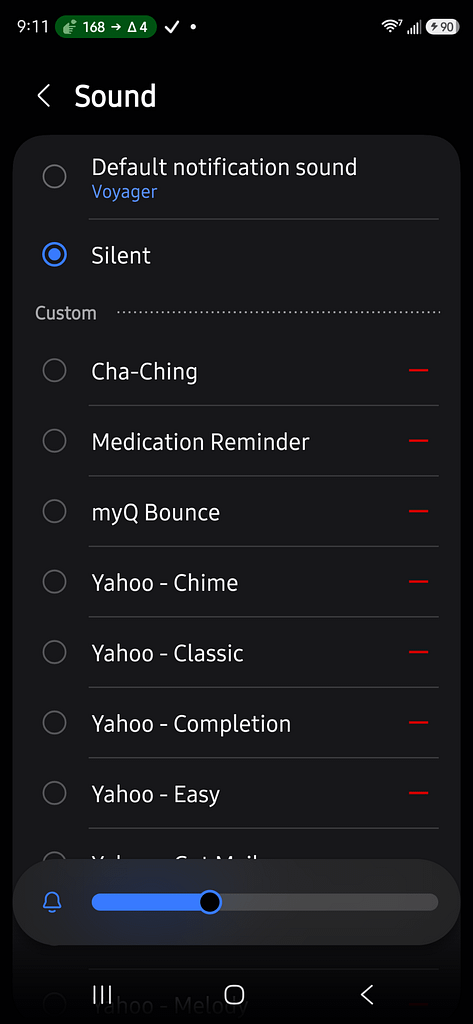
The notification category remains enabled and GlucoGlance can continue displaying the notification, but Android will no longer play a notification sound for that category.
Important — Each Category Is Independent
Android remembers these settings separately for every GlucoGlance notification category. Setting Glucose Status to Silent does not automatically silence IOB, Excess Insulin, Follow User Glucose, Predictive Excess Carbs, or any other category.
Therefore, if the goal is to have GlucoGlance notifications visible but completely silent, repeat the procedure for each enabled notification category for which you do not want an audible alert.
These controls belong to Android, not GlucoGlance. Once Android has created a notification category, the user has final control over its sound, vibration, visibility, and whether it is allowed at all.
App Level Notifications
App-level notification settings are the choices available inside GlucoGlance that determine which notifications the user wants the app to generate, such as glucose, insulin, or other alerts. For a GlucoGlance notification to appear, both levels must permit it: the notification must be enabled within GlucoGlance, and Android must also allow GlucoGlance to send that notification.
Voice Notifications
GlucoGlance voice announcements are configured under Notification Settings → Voice.
The Enable Voice Notifications switch is the master control for GlucoGlance voice announcements. When enabled, the settings below determine what information is announced and how frequently.
The user can select the Voice for Announcements and independently configure announcement frequency for:
- Glucose — 5, 10, 15, 20, or 30 minutes.
- IOB (Insulin on Board) — Never, New, 1, 5, or 10 minutes.
- COB (Carbohydrates on Board) — Never, New, 1, 5, or 10 minutes.
Selecting New causes the value to be spoken when a new value is received rather than on a fixed time interval.
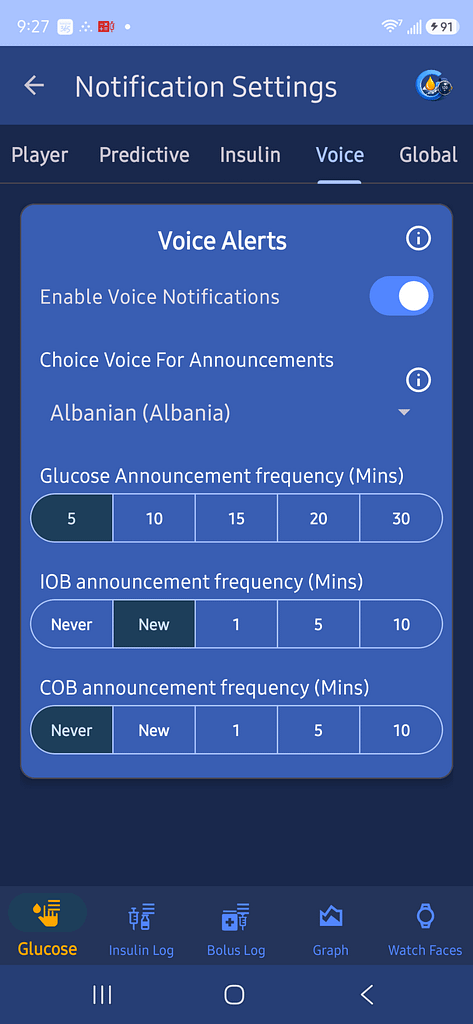
Spoken Values (On / Off) vs. Live Player Mute
The Voice settings determine what GlucoGlance is configured to announce. The Live Player provides a separate Mute control that can temporarily stop those announcements without changing the user’s Voice settings.
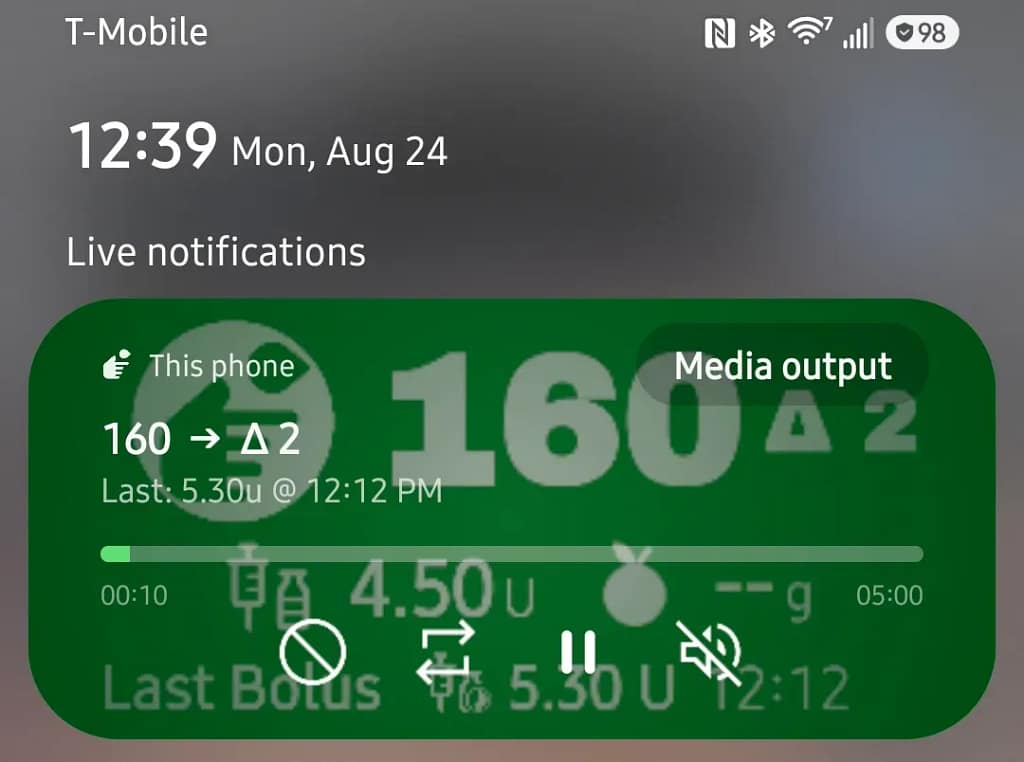
When GlucoGlance’s Live Player is displayed in the Android notification panel, the speaker icon on the right side controls voice output.
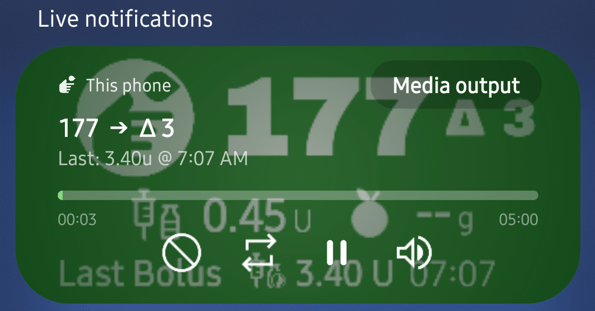
Tap the speaker icon to mute GlucoGlance voice announcements. The icon changes to a speaker with a slash, indicating that the Live Player is muted.