
HELP CENTER · FOLLOWING AND SHARING
Adding a Follow User in GlucoGlance
Before you start: the follow app (Dexcom Follow or LibreLinkUp) must be installed on this phone. It only needs to be installed. GlucoGlance mirrors the apps on your phone, so it only offers follow apps it finds there.
Some people bring a loved one’s glucose in through a companion app instead. That works, but you will not get the follower notifications, watch complications, Tiles or widgets.
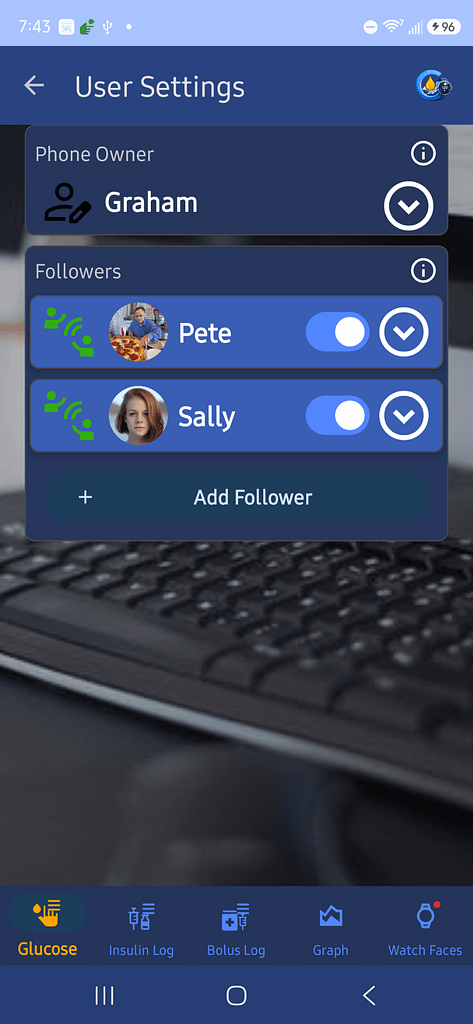
1. Settings > User Settings
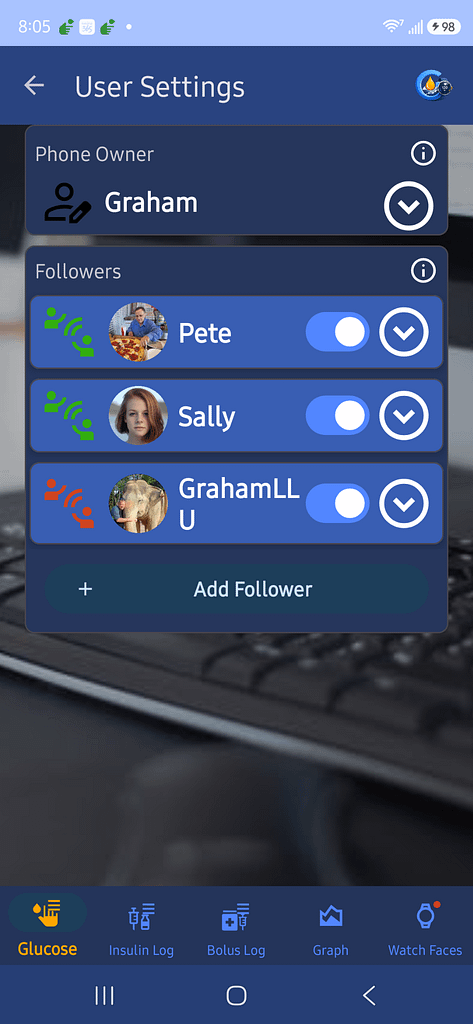
Press + Add Follower
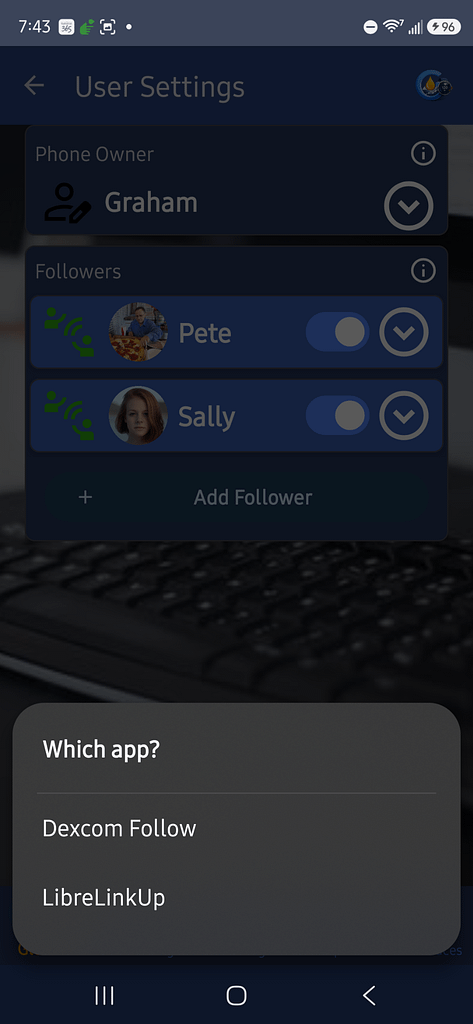
2. Choose the App
Choose which app you want to use. You may only have one choice
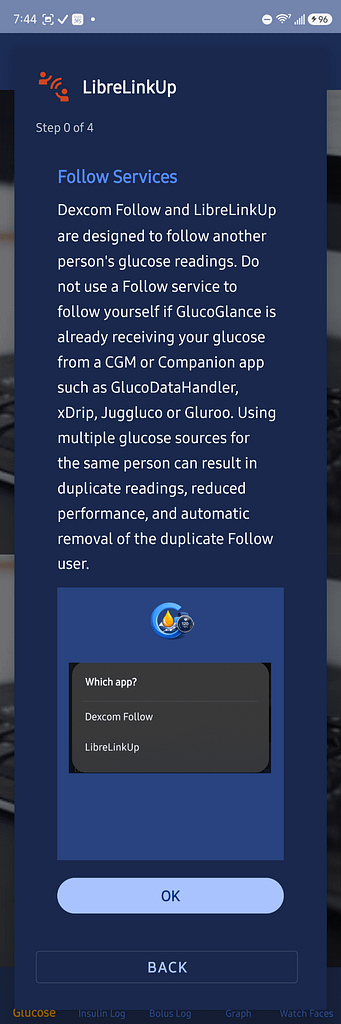
3. Follow User Warning
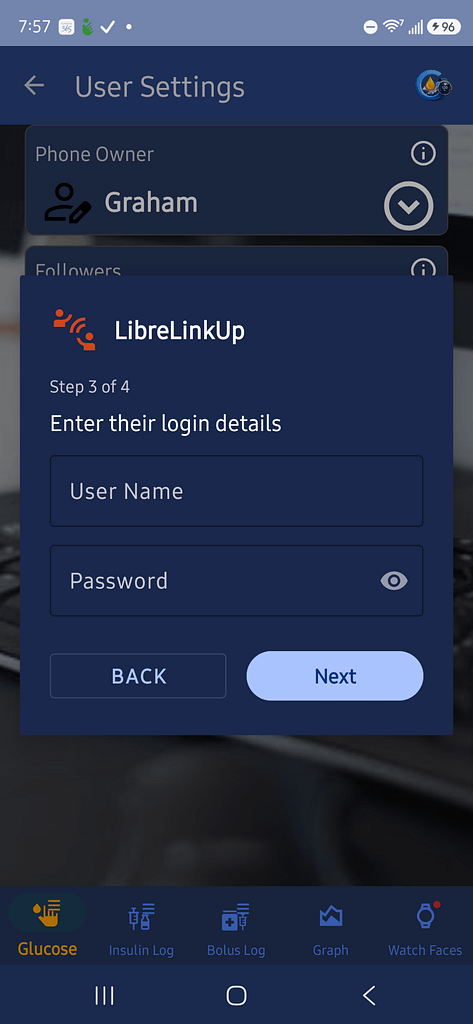
4a. Follow the prompts in the SetUp Wizard
The Name of the User you want to follow
4b. Enter the credentials you use to connect to the Follow Service
User Name / ID and Password
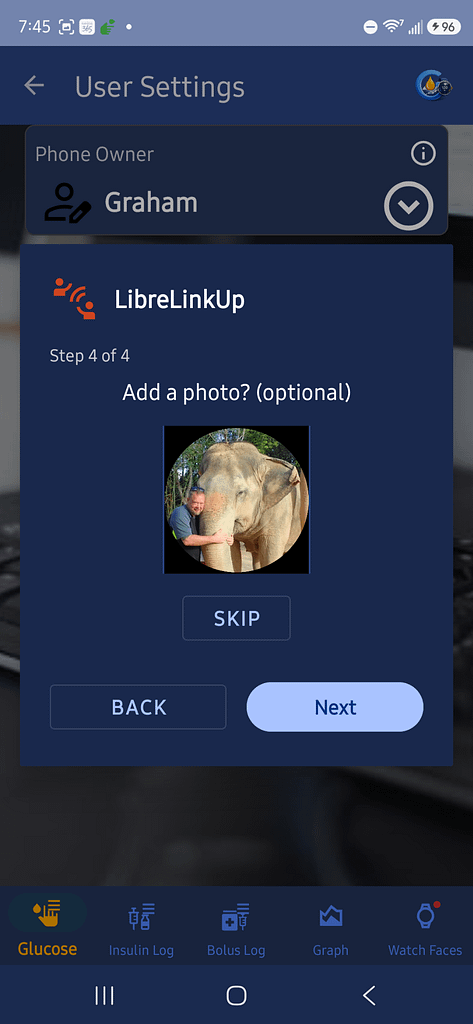
4c. Choose a Photo (Optional)
Photos are optional. They will be shown throughout the User Interface (Home Screen, Notifications and Watch Complications)
5. Exit the user setting with the back arrow at the top of the scree
This will return you to the Home Screen
6.Scroll to see the Users Glucose Card
Depending on your Display Settings you may need to scroll.
In this example you can see that it has received my last Libre reading was almost 170 days ago