
Example Display Settings Screen
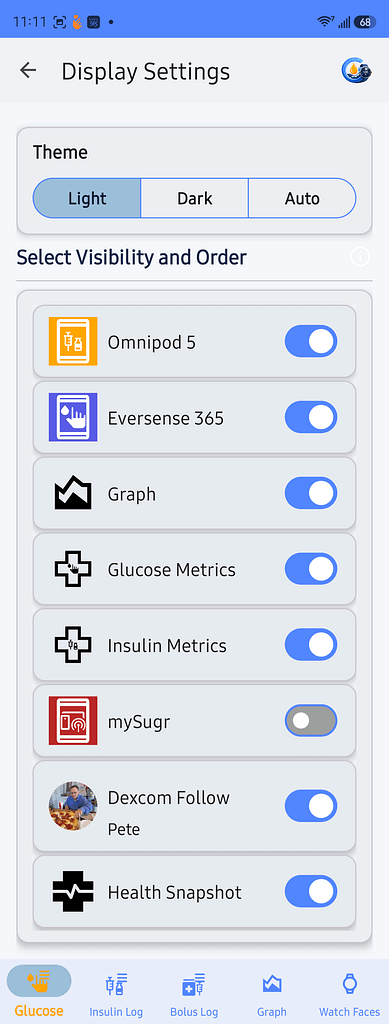
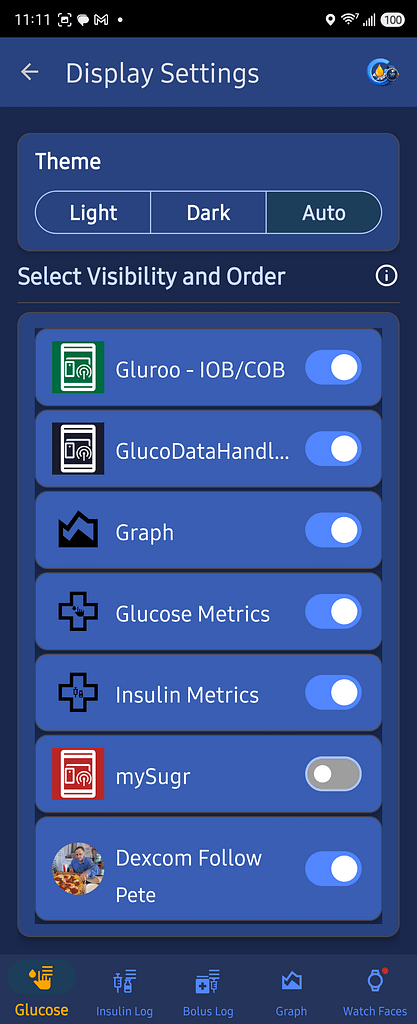
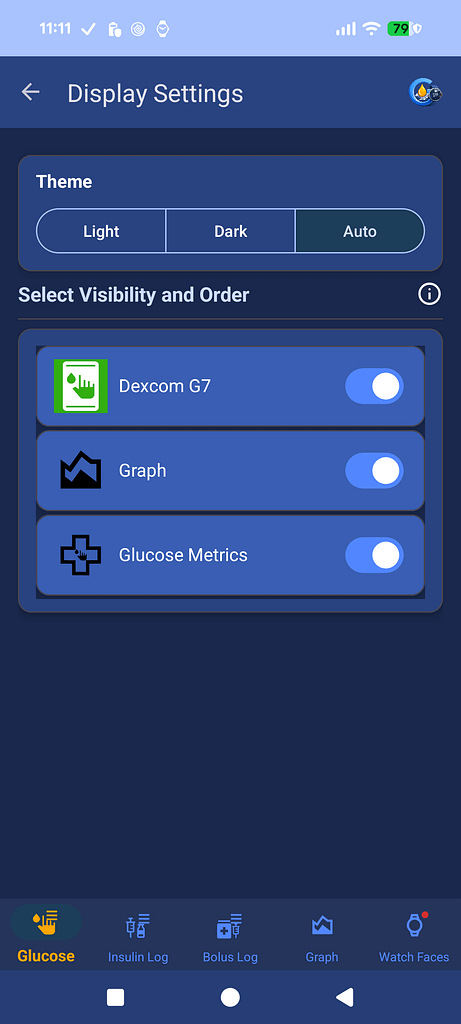
Use Display Settings to choose the app theme and control which cards appear on the Home screen.
Theme
Select one of the following:
- Light
- Dark
- Auto
Auto follows the current theme setting on your device.
Show or Hide a Card
Use the switch beside each card:
- Switch on to show the card
- Switch off to hide the card
Change the Card Order
Press and hold a card, then drag it up or down to the preferred position.
The order shown on this screen determines the order of the cards on the Home screen.
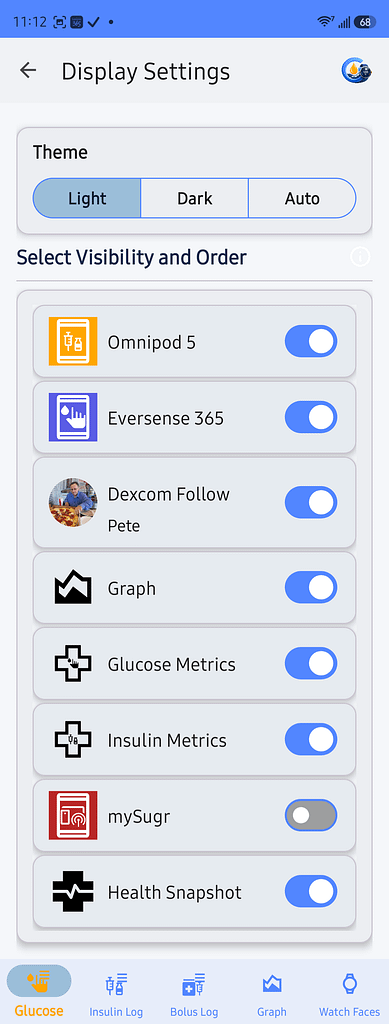
Available Cards
The cards shown depend on the apps, sensors, and features configured in GlucoGlance.
Examples may include:
- Insulin pump
- CGM
- Graph
- Glucose Metrics
- Insulin Metrics
- Blood glucose meter
- Follow user
- Health Snapshot
Tap the information icon beside Select Visibility and Order to view these instructions inside the app.