Other Settings Screen
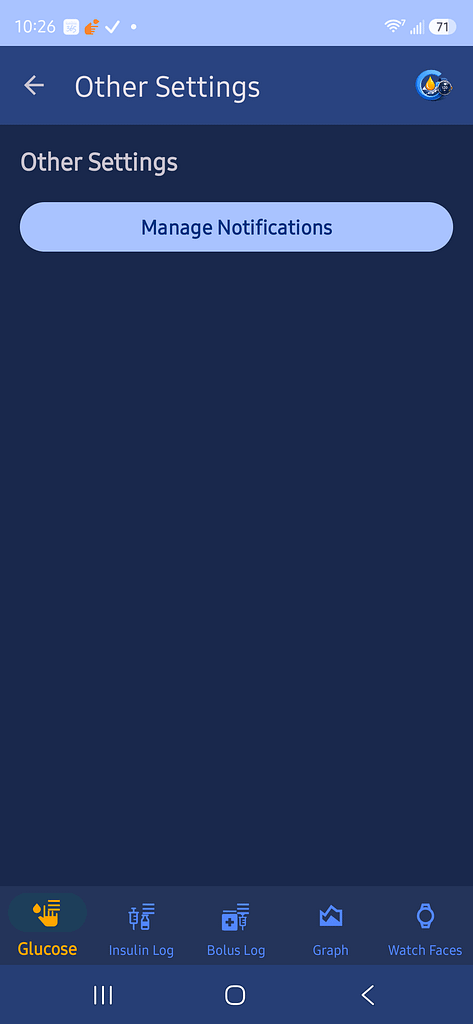
Use Other Settings to open Android’s notification controls for GlucoGlance.
Tap Manage Notifications to open the GlucoGlance notification settings provided by Android.
Muting Voice on the Live Player
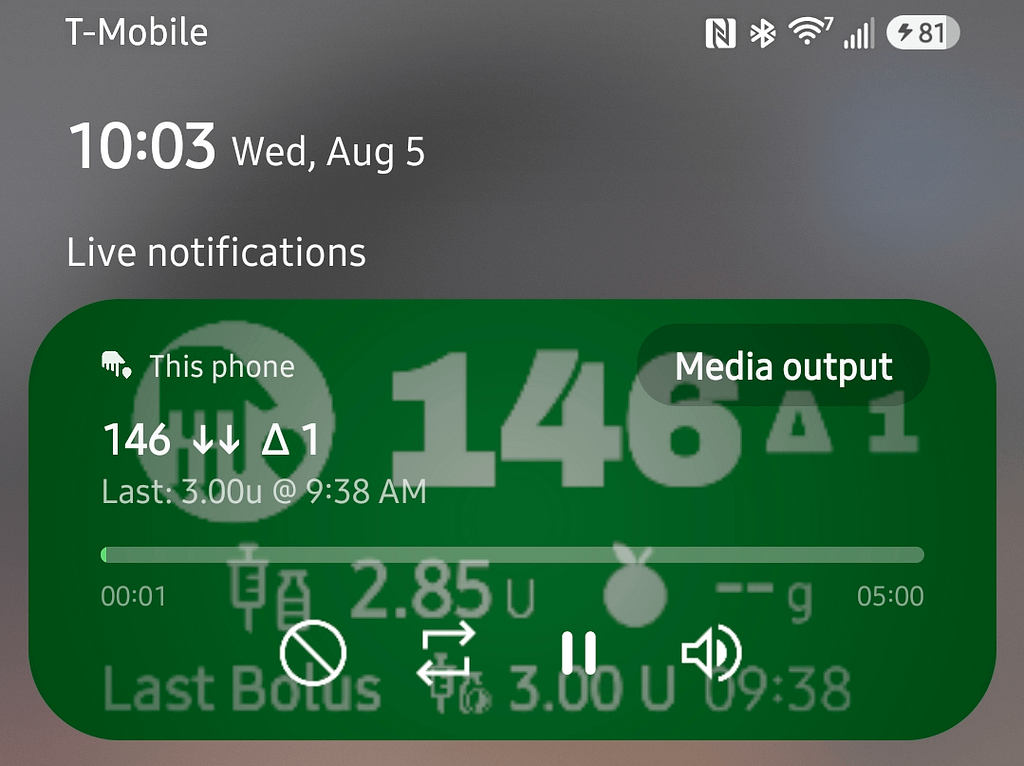
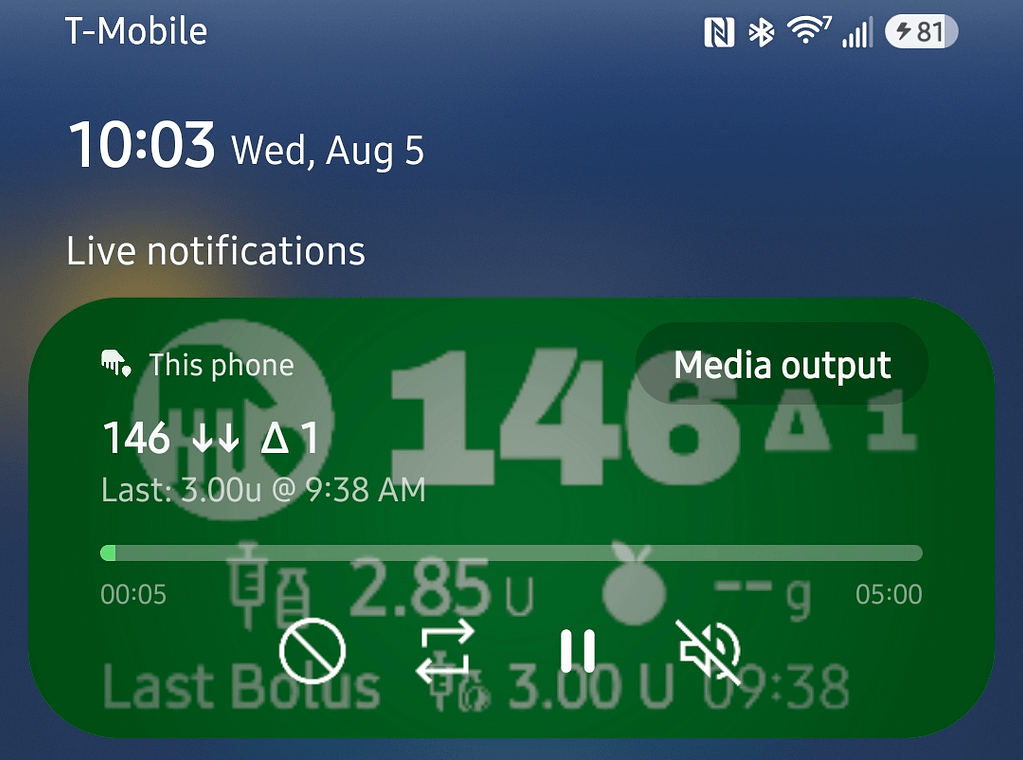
The Live Player includes four controls along the bottom.
Tap the speaker icon on the far right to mute voice announcements from the Live Player.
This mutes the spoken voice without closing the Live Player notification.
Android Notification Categories
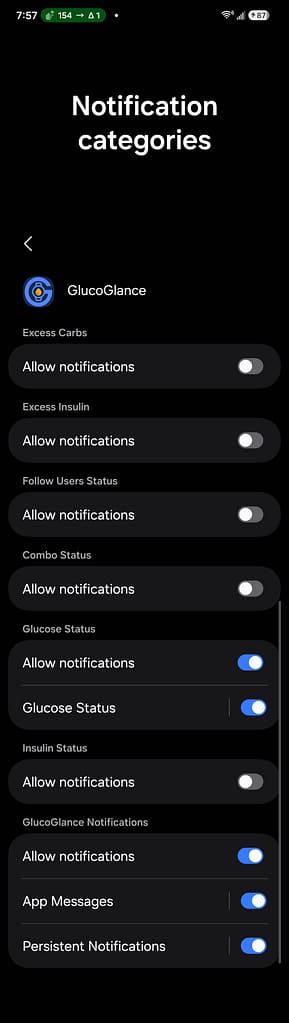
Android creates a separate notification category, sometimes called a notification channel, for each type of GlucoGlance notification.
Examples may include:
- Glucose Status
- Combo Status
- Insulin Status
- Excess Carbs
- Excess Insulin
- Follow Users Status
- Persistent Notifications
- App Messages
This allows each notification type to be enabled, disabled, or customized separately.
Turning Off a Notification Category
Open Manage Notifications, then select Notification categories.
Use the switch beside a notification category to turn that notification type on or off.
Turning off a category prevents notifications from that category from appearing.
Silencing a Notification Without Turning It Off
The Glucose Status and Combo Status notifications can remain enabled without making a sound.
Open the notification category by tapping its name, not its switch.
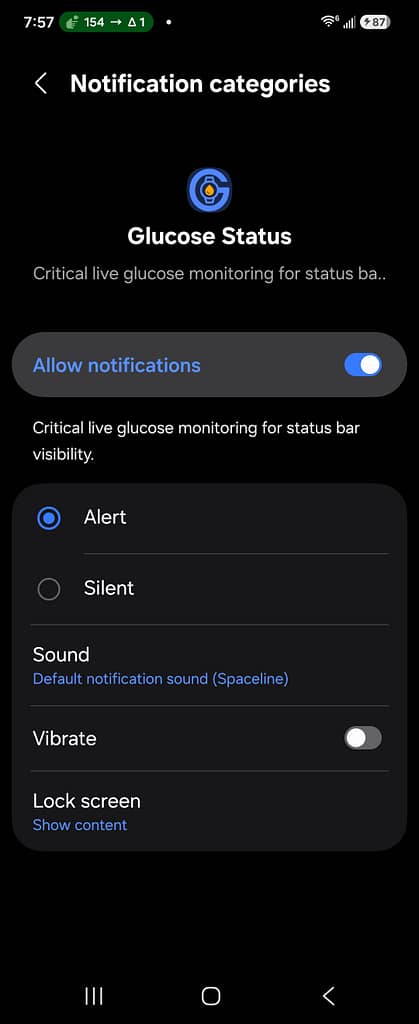
Tap Sound.
From the sound chooser, select Silent.
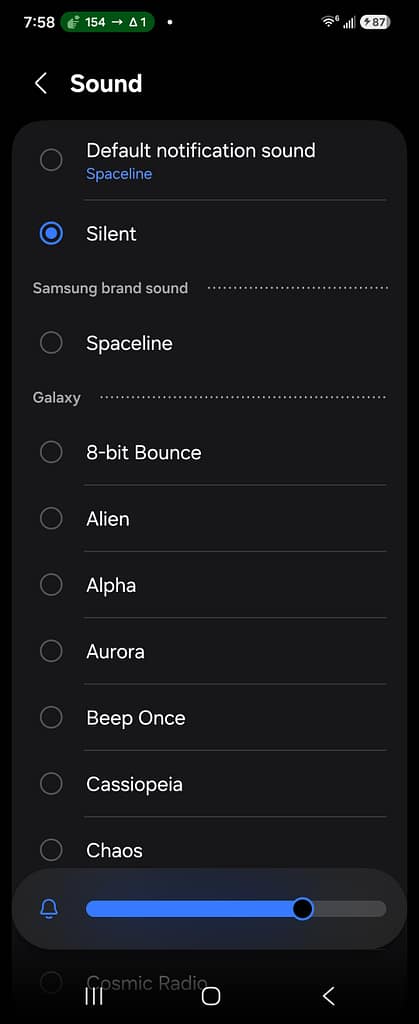
The important setting is the sound assigned to the notification category. Do not rely only on the Android Alert or Silent selection, because that changes additional notification behavior.
Setting the category’s sound to Silent allows the notification to remain active while preventing repeated notification sounds.
Turning Off Notification Pop-Ups
Android also allows notification pop-ups to be turned off.
Open the notification category and disable Show as pop-up, or turn off the Notification pop-up option on the main GlucoGlance notification screen.
The notification can still appear in the notification shade without appearing as a pop-up.
Suggested Setup for Quiet Notifications
For users who want GlucoGlance information without repeated sounds:
- Leave the required Glucose or Combo notification category enabled.
- Open that notification category.
- Set its Sound to Silent.
- Turn off notification pop-ups if desired.
- Use the Live Player speaker icon to mute spoken voice announcements.
Android notification screens and wording may vary by phone manufacturer and Android version.