
Example User Settings Screen
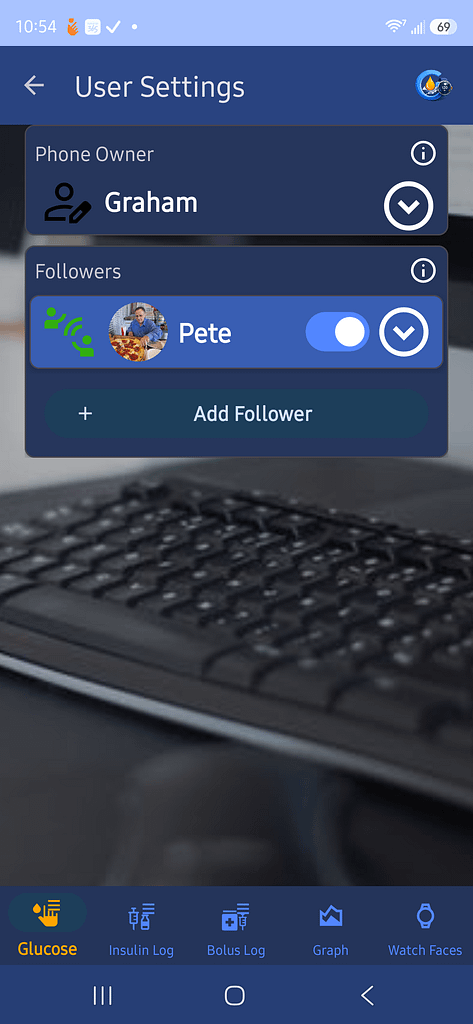
Use User Settings to manage the phone owner and Follow users.
Phone Owner
The Phone Owner section shows the primary GlucoGlance user.
Tap the arrow to open or edit the phone owner settings.
Followers
The Followers section shows each configured Follow user.
Use the switch beside a user to enable or disable that follower.
Tap the arrow beside a user to open or edit their settings.
Add a Follower
Tap Add Follower.
Choose the Follow service:
- Dexcom Follow
- LibreLinkUp
The same mini wizard used during onboarding opens.
Follow User Setup
The wizard explains that Follow services are intended for another person’s glucose readings.
Do not add yourself as a Follow user when GlucoGlance already receives your glucose from a CGM or companion app.
Using multiple glucose sources for the same person can create duplicate readings and may cause the duplicate Follow user to be removed.
Enter Login Details
Enter the Follow account username and password.
These are the credentials used by the selected Follow service.
Add a Photo
A profile photo is optional.
Add a photo to make the Follow user easier to identify in cards, notifications, widgets, and watch faces.
Tap Skip to continue without a photo.
Complete Setup
Continue through the wizard and save the Follow user.
The new user will then appear in User Settings and anywhere Follow users are supported.